CSV upload - floss collection
Using the CSV upload option you can quickly transfer your floss collection from a spreadsheet to Flosshaven, and don't be scared, it's super simple!
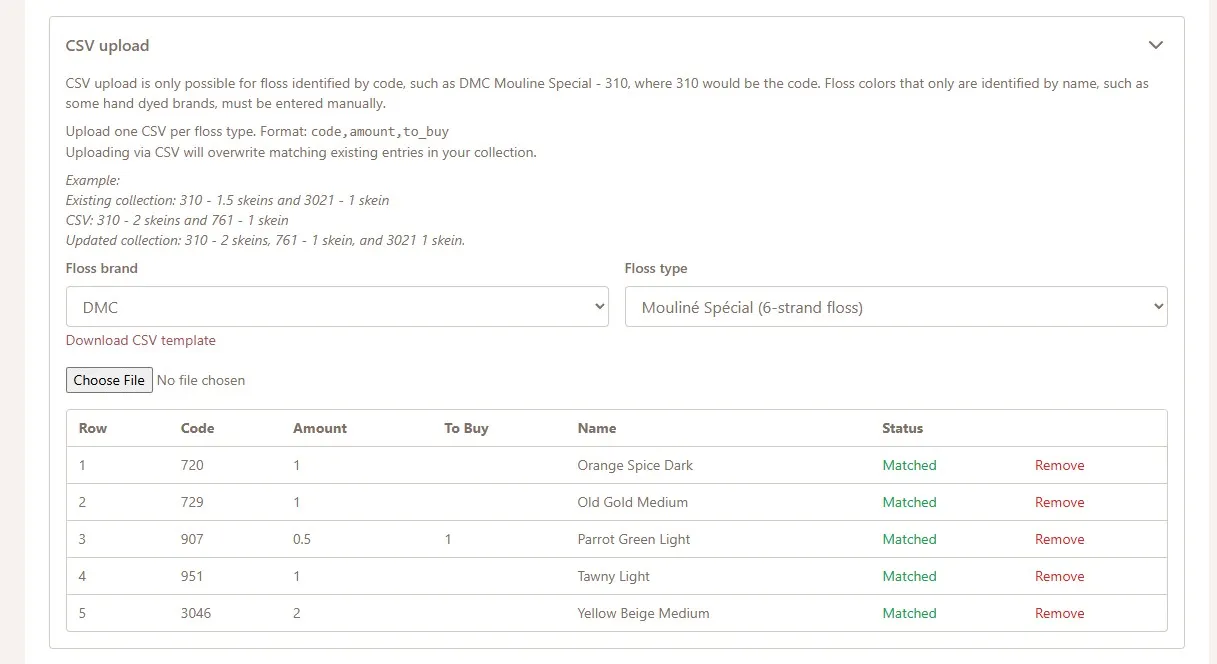
There are just a few things you need to keep in mind:
Only floss with a code (not just name) can be uploaded using CSV
Which decimal separator you use
The headings of your file must match
Only one floss type can be uploaded at a time
Uploading via CSV will overwrite matching existing entries in your collection
Floss code vs name
If you are unsure if the floss you want to add has a code or only names, you can have a look in the floss database. Floss registered with code will have a code above the name in the swatch preview.
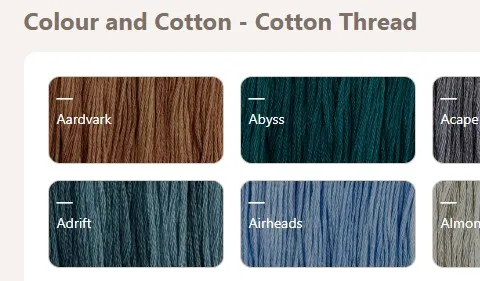
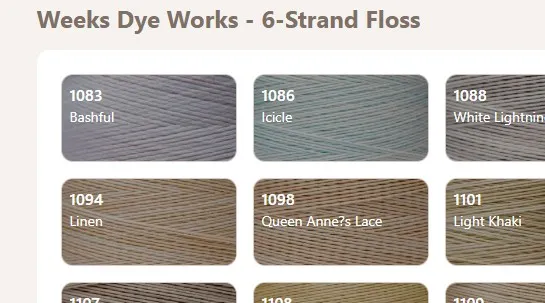
When you go to upload your csv file you should only be able to select floss that is registered with a code in the database.
Saving spreadsheet as csv
Excel
Excel usually saves csv files as comma delimited, so if you use comma separated decimal numbers you have two options.
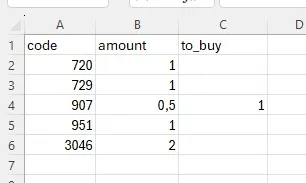
You can change settings inside Excel in order to save your csv file with a semicolon delimiter, or you can do a quick find and replace all commas.
If you save using comma as the delimiter and use comma as decimal separator, the csv import will not know the difference between numbers and columns.
In order to change the delimiter Excel uses when saving csv files, go to File > Options > Advanced and untick "Use system separators". If you then specify decimal separator as a comma and thousand separator as a period or a space, it will save your csv file using semicolon as the delimiter - even if the save dialog says "Comma delimited".
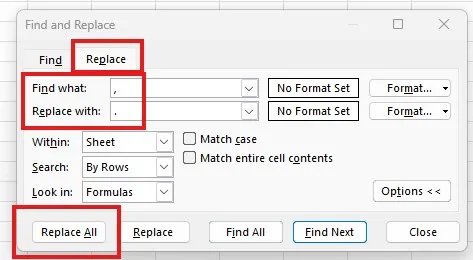
Or you can do a "find and replace all", either use the shortcut Ctrl + F or go to Home > Find & Select > Replace... and insert "," to find and "." to replace and click replace all.
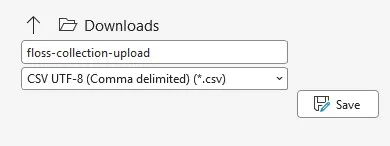
Save your file as a csv, and even though the save dialog says "comma delimited" it will be saved with semicolon if you have unticked "use system separator" and added comma as the decimal separator.
Google sheets
Google sheets does (atleast currently) not have a way to save csv files with a different delimitor than comma. So, if you use google sheets to create your spreadsheet, and use comma separated decimals, you will need to a find and replace for all commas. Go to Edit > Find and replace, or use the shortcut Ctrl + H.
Insert "," to find and "." to replace and click replace all.
Then you can download your file as comma separated values.
Uploading csv to Flosshaven
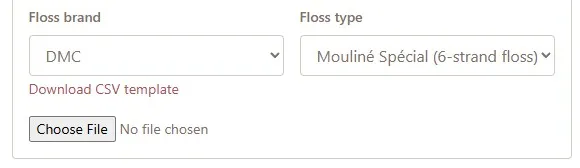
When your file is ready, go to manage your floss collection and click "CSV upload", select the floss brand and type you're uploading. In this example I'm uploading DMC - Mouliné Special.
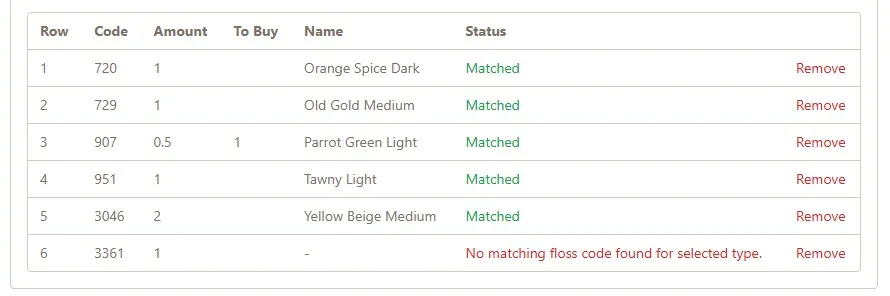
When you select your file, a preview of all the rows will show up and let you know if the row found a match in the database, or if something went wrong. In this example I included a floss code that does not exist in the database. I can choose to either remove the row and add it manually if it was just a typo perhaps, or I can remove/correct the row in the csv file and upload again.
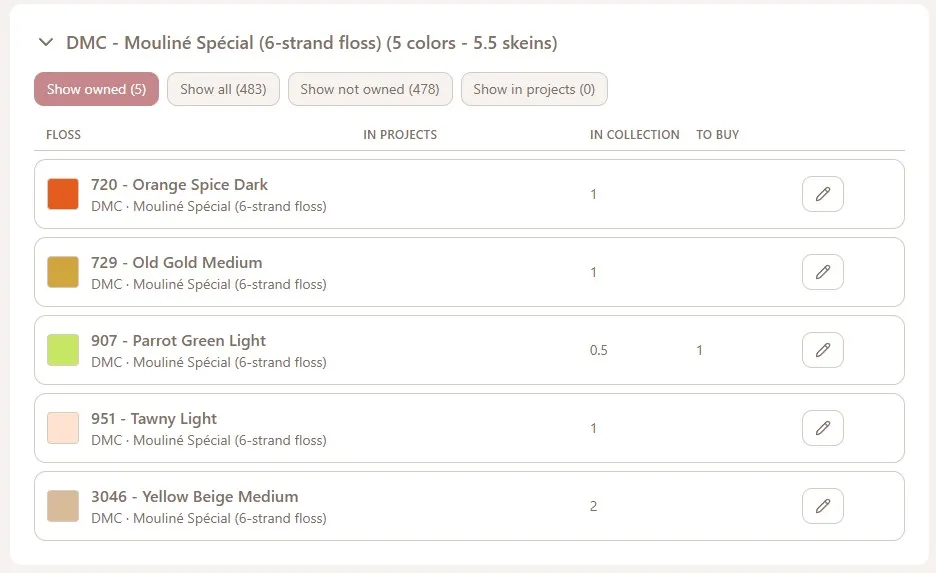
When everything looks correct, click "Save floss collection" and your collection will be updated!
Need help?
If you run in to any issues or have any questions, please hop on in to the discord server.
Log in to react.